Login to Websoft9 Console
After installing Websoft9, you can log in to the Websoft9 Console for configuration and management.
Prerequisites
Before logging in, ensure the following:
-
Open inbound ports on your cloud security group:
- Required: 80, 443, 9000
- Optional (for app access): 9001-9999
First Visit
- Open your browser and visit:
http://<server-public-IP>:9000 - On first visit, the Setup Wizard will guide you to create an administrator account and configure basic settings
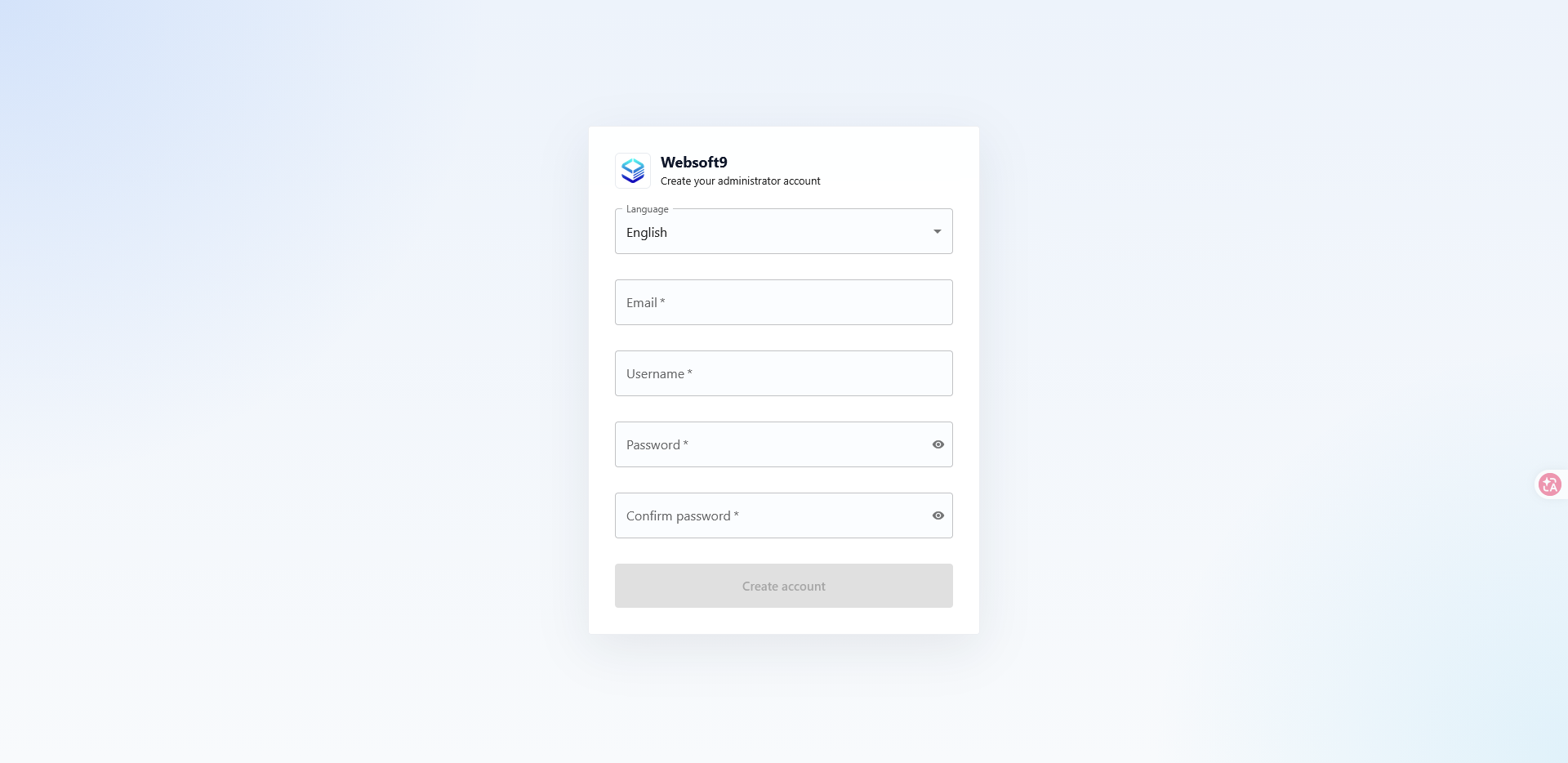
- After setup, log in with the administrator account you just created
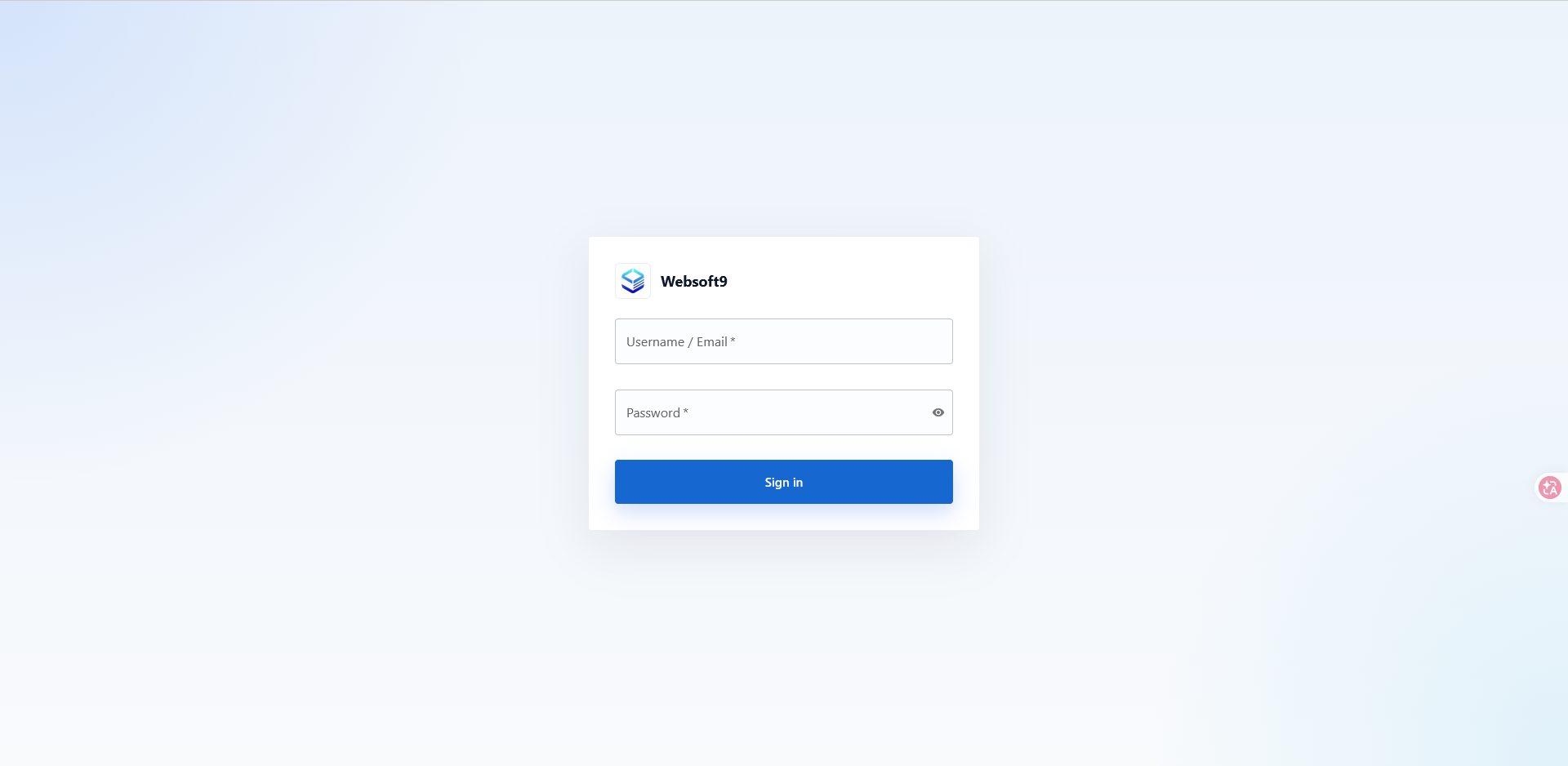
Websoft9 uses its own user system. The administrator account is created in the Setup Wizard and is independent of the server's operating system accounts.
Console Overview
After logging in, you will see the console dashboard:
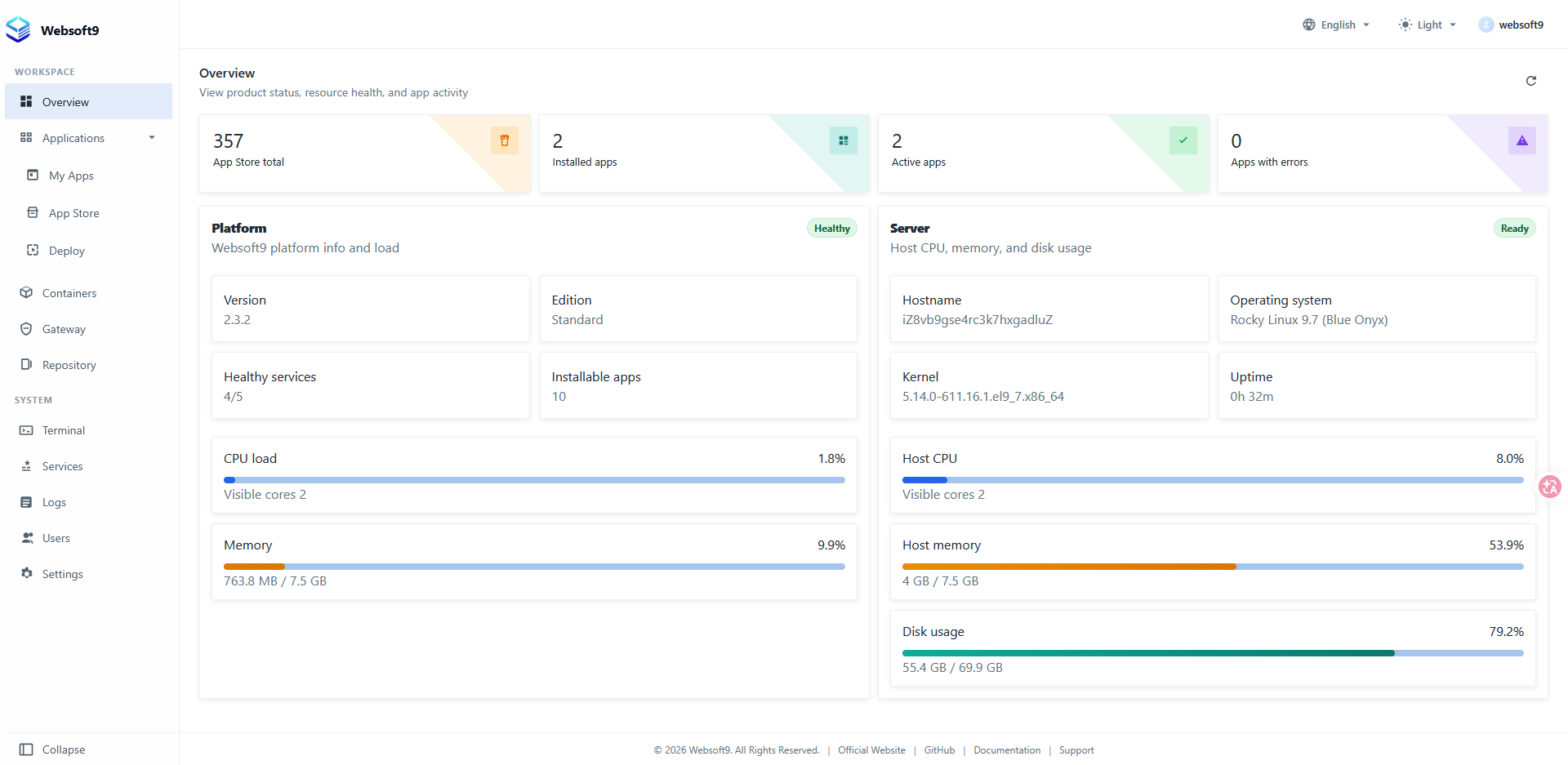
The left sidebar menu is organized into two sections:
Workspace
| Menu | Description |
|---|---|
| Overview | Server status dashboard |
| Apps › My Apps | Manage installed applications (start, stop, restart, redeploy, backup, compose, etc.) |
| Apps › App Store | Browse and install 200+ open source app templates |
| Apps › Deploy | Custom Docker Compose deployment |
| Containers | Manage Docker containers and images |
| Gateway | Domain binding, reverse proxy, and SSL certificate management |
| Repository | Git repository hosting and code management |
System
| Menu | Description |
|---|---|
| Terminal | Browser-based SSH terminal and file manager |
| Services | Core service status monitoring |
| Logs | Structured log viewer |
| Users | Multi-user accounts with role-based access control |
| Settings | Platform parameters, mirror acceleration, certificates, and global configuration |